
What Does Collate Mean When Printing?
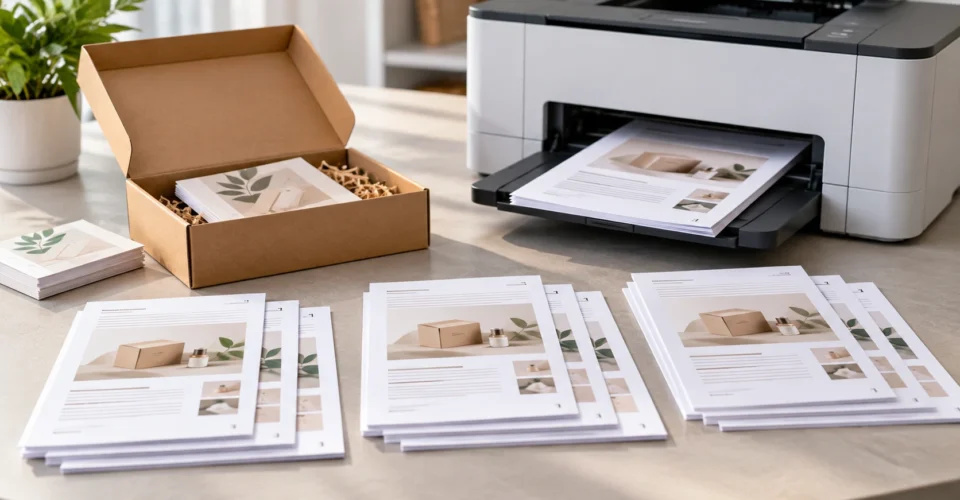
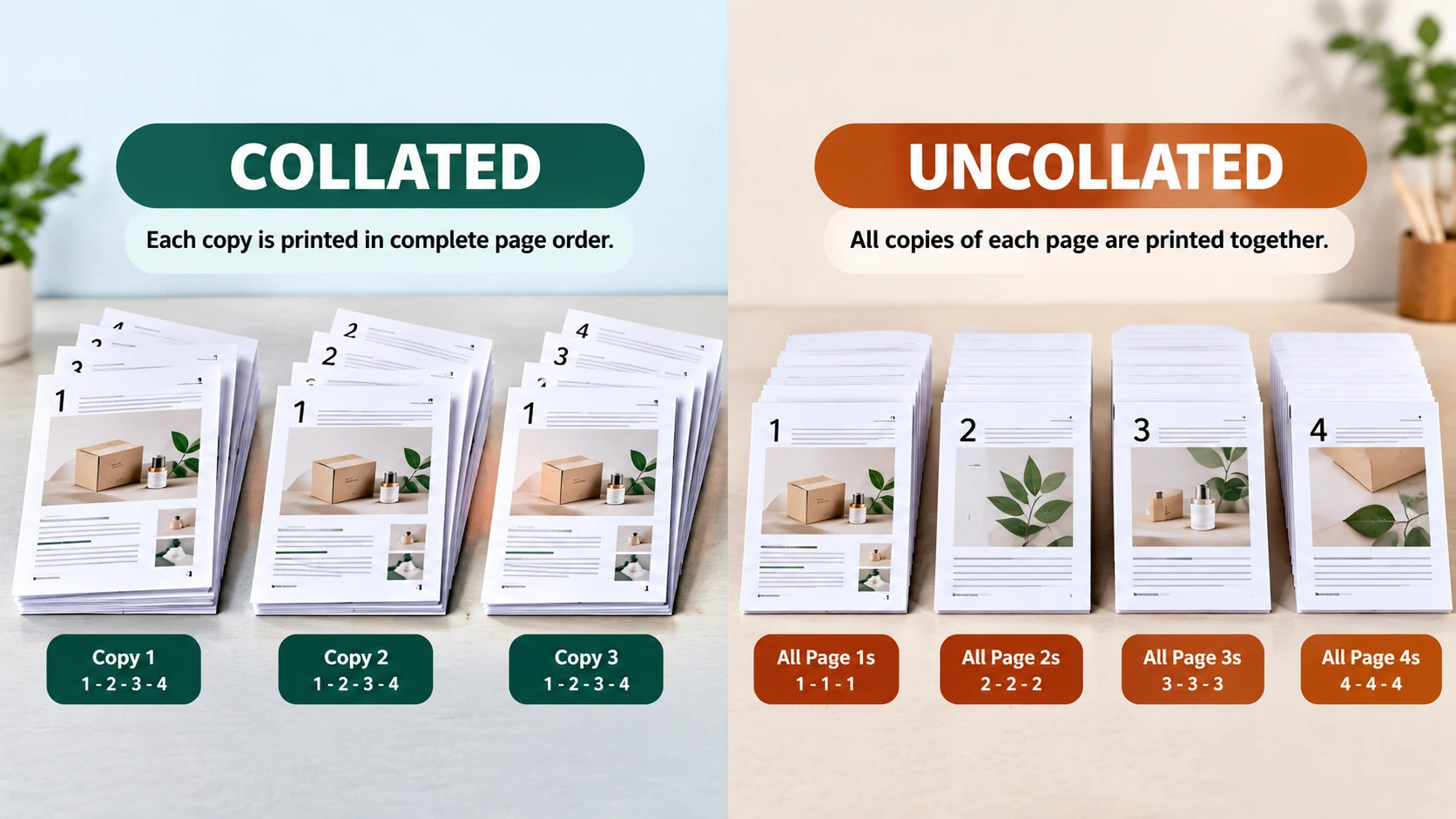
If you have ever wondered what does collate mean on printer, the short answer is simple: Collate tells the printer how to arrange multiple copies of a multi-page document. When Collate is enabled, the printer aims to produce one complete copy before starting the next. When it is disabled, the printer may output all copies of page 1, then all copies of page 2, and so on.
For example, if you print three copies of a four-page document, a collated job is 1-2-3-4, 1-2-3-4, 1-2-3-4. An uncollated job is 1-1-1, 2-2-2, 3-3-3, 4-4-4. The setting changes output order; it does not rewrite the document or improve print quality.
This matters for manuals, reports, catalogs, product instructions, thank-you cards, promotional inserts, and other printed components that need to stay together as complete sets.
What Does Collate Mean When Printing?
Collation is the process of arranging printed pages into the intended sequence for each copy of a multi-page job. The Collate setting tells the print system to group those pages by copy rather than grouping identical page numbers together.
So when someone asks what does collate mean for printing, the practical answer is: it determines whether multiple copies come out as complete document sets or as groups of matching pages.
A Simple Example
| Job | Collate ON | Collate OFF |
|---|---|---|
| 2 copies of a 3-page document | 1-2-3 | 1-2-3 | 1-1 | 2-2 | 3-3 |
| 3 copies of a 4-page document | 1-2-3-4 | 1-2-3-4 | 1-2-3-4 | 1-1-1 | 2-2-2 | 3-3-3 | 4-4-4 |
| 1 copy of any document | No practical difference | No practical difference |
Collated vs. Uncollated Printing: The Simple Difference
Collated means complete copies. Uncollated means page groups.
If you are printing a 10-page instruction sheet for five customers, Collate is useful when you want each ten-page set to come out together. If you are printing a large quantity of one-page flyers, the setting usually has little practical value because there is no multi-page set to assemble.
What Does the Collate Setting Actually Do?
The Collate setting controls output sequence when more than one copy of a multi-page job is requested. It is an organization instruction, not a print-quality setting.
- It groups pages into complete copies when the job and printer support the setting.
- It reduces the need to manually sort pages after printing.
- It is most noticeable when printing multiple copies of a document with two or more pages.
- It does not automatically mean the document will be printed double-sided.
- It does not create a booklet layout.
- It does not guarantee error-free output; jams, misfeeds, or other print problems can still occur.
When Should You Turn Collate On?
Select Collate when the final output needs to be handled as complete multi-page sets and you would otherwise have to sort matching pages by hand.
Multi-Page Reports and Presentations
Use Collate when each person needs a complete copy and the printed pages will be handed out as sets.
Manuals and Instructions
Collation can keep the pages of each manual together before stapling, binding, inserting, or distributing them.
Catalogs and Product Literature
For multiple complete copies, collated output can reduce manual work needed to assemble each copy.
Product Packaging Inserts
If a product needs a multi-page instruction sheet, care guide, warranty information, or promotional insert, collated output can help keep each printed set together.
Customer or Fulfillment Documents
Multi-page documents can be easier to process when each copy exits as a complete set.
When Should You Leave Collate Off?
Collation is not automatically better for every print job. Leave it off when grouping pages by page number is more useful than receiving complete copies.
- You are printing a single-page document.
- You need large stacks of the same page for a later production step.
- You are manually sorting or batching pages for a specific finishing process.
- Your print workflow or finishing equipment has its own required sequence.
- You are troubleshooting a job and want to isolate one page at a time.
For production work, follow the requirements of the printer, finishing equipment, or print provider rather than assuming Collate should always be enabled.
Collate vs. Duplex: What Is the Difference?
Collate and duplex solve different problems. Collate controls how multiple copies are grouped. Duplex controls whether pages print on both sides of the sheet.
| Setting | What It Controls | Simple Example |
|---|---|---|
| Collate | Order and grouping of multiple copies | 1-2-3 | 1-2-3 |
| Duplex / Double-sided | Whether both sides of the sheet are printed | Page 1 front, page 2 back |
| Booklet / Book Fold | Page arrangement for folding and binding | Pages are imposed into booklet order |
You can use Collate and duplex together. For example, a four-page document printed double-sided can be produced as two sheets per copy, while Collate determines that the first copy is completed before the next copy is produced. Exact behavior depends on the printer and application.
Collate vs. Booklet Printing
Booklet printing is more than page grouping. A booklet workflow can change the order in which pages are placed on sheets so the finished sheets can be folded and bound into the intended reading sequence. Collate does not perform that imposition.
If your goal is to print several complete copies of an ordinary multi-page document, think Collate. If your goal is to create a folded publication with pages arranged for binding, look for a booklet or book-fold workflow. For more information about folded publication printing, you can explore BoxNovo’s related printing resource.
For businesses that need actual booklet production rather than simple document collation, booklet production options are a more appropriate solution because the finished publication requires more than simply grouping copies.
How to Turn Collate On When Printing
The exact location of the option depends on your operating system, application, printer model, and driver. Start with the print dialog, set the number of copies, and look for a Collate option or a paper-handling/finishing section.
Windows
In Microsoft Word for Windows, start with File > Print and choose the number of copies. The available settings can vary by printer, so the Collate control may appear in the main print panel or in Printer Properties/Preferences. Preview the output when available before a larger run.
If you are preparing artwork before printing, a practical print preparation guide can also help you review the file and printing workflow before producing multiple copies.
Mac
On current macOS print dialogs, choose File > Print, set the number of copies, then look under Paper Handling for “Collate Sheets.” Apple describes this as printing the complete document before another copy. Apple also lists Double-sided as a separate option.
Adobe Acrobat / PDF
Open the PDF’s print dialog, set the number of copies, and review page-handling, paper-handling, and printer options. Because Acrobat can use different printer drivers and configurations, the exact location and wording of Collate can vary.
If You Cannot Find Collate
- Confirm that you selected more than one copy.
- Open Printer Properties or Preferences and inspect finishing or output settings.
- Check the printer manufacturer’s driver documentation.
- Look under Paper Handling, Finishing, Output, or similar sections.
- If the printer does not expose Collate, organize the pages another way or use manual sorting.
Why Does Collation Matter for Packaging?
Packaging often involves more than the box itself. A finished order can include an instruction sheet, care card, warranty information, thank-you card, promotional insert, product information, or other printed material. When those components contain multiple pages, their output order can affect how efficiently they are assembled.
The useful operational idea is not that Collate makes packaging better. It is that organized printed sets can reduce manual sorting before those components are paired with products or packaging.
If you are planning the complete box-and-insert system, BoxNovo’s custom packaging solutions can help you think about the box, printed components, presentation, and packing workflow as one system.
How Collation Fits Into a Packaging Workflow
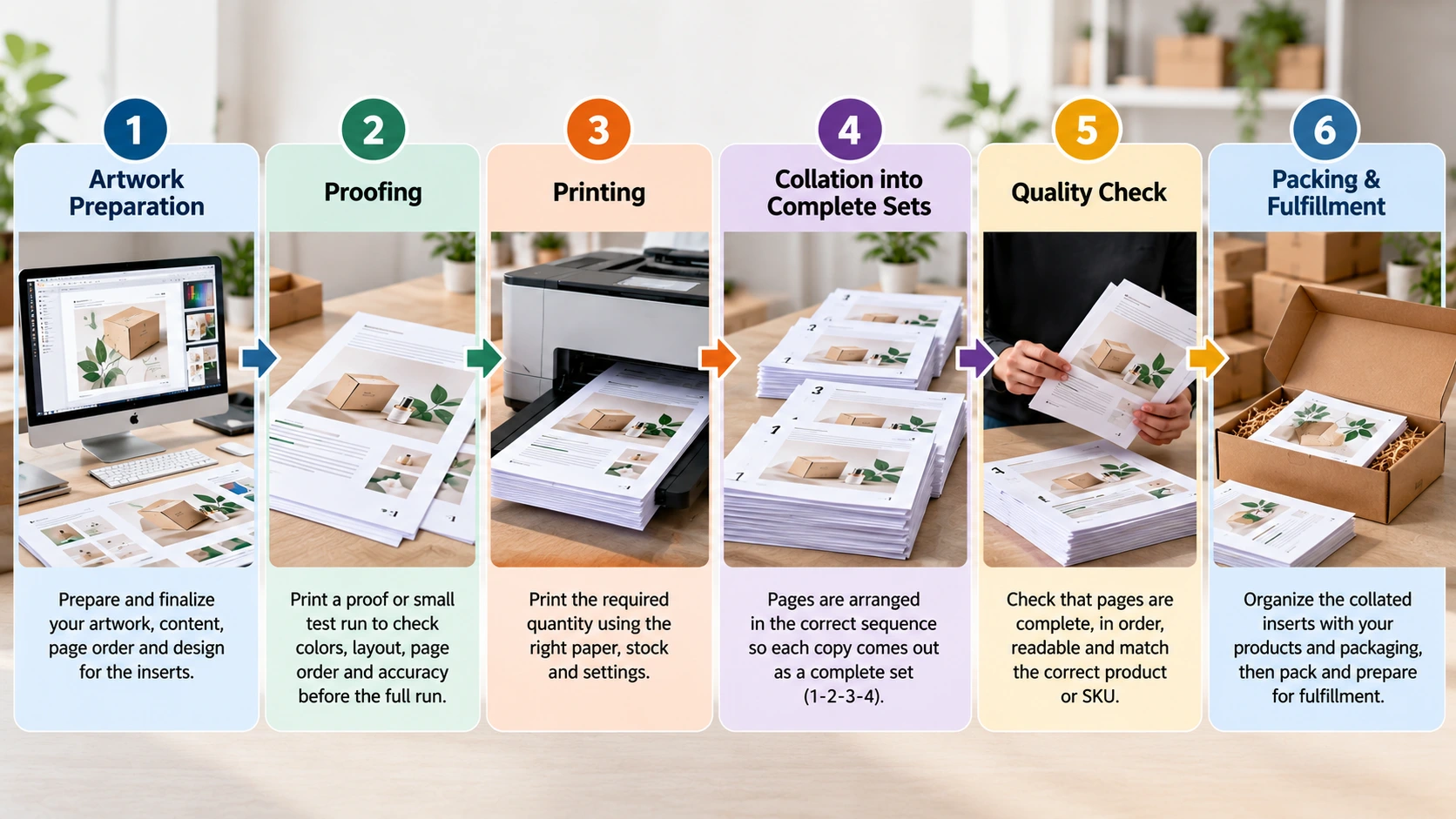
Collation is only one step in a larger workflow:
- Finalize the artwork: Confirm page order, copy, images, branding, dimensions, and the final approved file.
- Run a proof or small test: Check page order, trim, margins, colors, readability, and variable information before a larger run.
- Print the required quantity: Use the correct paper or stock and settings appropriate to the job.
- Organize complete sets: Use Collate when complete copies are the desired output.
- Quality-check the sets: Check that pages are present, in order, readable, and matched to the correct product or SKU.
- Prepare packaging components: Pair the printed materials with the appropriate product and box configuration.
- Pack and fulfill: Complete the final packing process according to the product and shipping workflow.
Does Collation Matter for Custom Boxes?
The box itself does not become collated. Collation applies to printed pages or sets of printed material. It becomes relevant when a custom packaging project includes multi-page printed components that must be organized before packing.
For product-specific packaging, custom product packaging can be relevant when the printed insert and the box need to be considered together.
For ecommerce fulfillment, ecommerce-ready mailer packaging can be part of a workflow where inserts and other printed materials are prepared alongside the outer packaging.
The printed result also depends on stock and production choices, so review the relevant packaging material choices when the material itself is part of the packaging decision.
For a broader view of how packaging components, structure, materials, and presentation fit together, BoxNovo’s complete packaging planning guide provides a wider context beyond the individual print setting.
Collation, Finishing, and Binding: What’s the Difference?
| Term | Meaning | What It Does Not Mean |
|---|---|---|
| Collation | Arranges multiple copies into the intended page sequence. | It is not binding and does not create a booklet layout. |
| Finishing | A broader production stage that can include folding, cutting, stapling, binding, or other post-print operations. | It is not a synonym for Collate. |
| Binding | Holds pages together in a finished publication. | Binding does not determine whether copies were collated. |
| Booklet printing | Imposes pages for folding and binding into booklet form. | It is more than simple copy grouping. |
What Is Manual Collation?
Manual collation means a person physically sorts printed pages into complete copies. For a three-page document, an operator might take page 1, page 2, and page 3 and repeat that sequence until the required number of sets is complete.
Manual collation can be practical for small runs, unusual page combinations, mixed documents, or workflows where machine output is not suitable. For larger runs, automated or printer-based collation can reduce repetitive sorting work, but finished sets should still be checked.
Does Collate Change Print Quality?
No. Collation primarily changes output order. It does not inherently make text sharper, colors more accurate, or images higher resolution. Print quality depends on factors such as the source file, printer, ink or toner, media, resolution, color settings, and production process.
Does Collating Use More Paper?
No. With the same document and copy count, Collate changes the order of the output rather than the amount of content printed.
Can Collate and Duplex Be Used Together?
Yes, when the printer and application support both settings. Duplex controls printing on both sides of a sheet; Collate controls grouping of multiple copies.
Common Collation Mistakes
- Assuming Collate means double-sided printing.
- Assuming Collate creates a booklet.
- Turning Collate on for a one-page job where it has no practical effect.
- Failing to check whether the printer driver exposes its own finishing settings.
- Skipping a test copy before a large production run.
- Assuming a collated stack is automatically correct without checking page order and completeness.
- Using the same output setting for every job even when downstream finishing requires a different sequence.
A Simple Decision Guide: Should You Select Collate?
| Question | If YES | If NO |
|---|---|---|
| Are you printing more than one copy? | Continue to the next question. | Collate has little or no practical effect. |
| Does each copy contain multiple pages? | Continue to the next question. | Collate usually does not matter. |
| Do you want each copy as a complete set? | Select Collate if supported. | Consider leaving it off. |
| Will another finishing or sorting process require page groups? | Follow that workflow’s requirements first. | Collate may simplify handling. |
Quick rule: If you are printing multiple copies of a multi-page document and want each copy to be complete, Collate is usually the setting you are looking for.
How to Avoid Problems With Larger Print Runs
- Confirm the final file and page count.
- Print a small test quantity.
- Verify the first complete set from the output.
- Check that no page is missing, duplicated, upside down, or out of sequence.
- Confirm that the paper or stock and finishing settings match the approved job.
- Proceed with the larger quantity only after the test is correct.
- Spot-check completed sets before they move into packing or fulfillment.
Collated Printing for Product Packaging and Ecommerce
For ecommerce and product packaging, a printed insert is often part of a larger customer experience. A complete insert set can communicate instructions, product information, care guidance, warranty details, or a brand message without requiring the customer to sort pages.
The operational point is consistency: printed material should match the product, SKU, language, and packaging configuration it is intended for. Collation can support that process by keeping multi-page components together, while matching and quality checking remain separate workflow steps.
What Does Collate Mean on a Printer? Quick Answer
Collate on a printer means arranging multiple copies of a multi-page document into complete sets. For example, three copies of a four-page document with Collate selected produce 1-2-3-4 three times, rather than all three copies of page 1, then page 2, and so on.
Collate is different from duplex printing, which controls whether both sides of a sheet are printed, and different from booklet printing, which changes page arrangement for folding and binding.
Frequently Asked Questions
What does collate mean on a printer?
It means the printer organizes multiple copies of a multi-page document as complete copies, when the printer and application support that setting.
What does collate mean on printer when printing multiple copies?
It means pages are grouped by copy. A three-page document printed twice is normally 1-2-3, then 1-2-3 when collated.
What does printing collate mean?
It refers to arranging printed pages so each copy of a multi-page document is assembled in the intended order.
What does collate do when printing?
It controls the order in which pages for multiple copies are output. It does not change the document’s content or inherently change print quality.
What does collate mean in print settings?
It is the option that controls whether multiple copies are output as complete document sets or grouped page numbers.
Is collate the same as double-sided printing?
No. Double-sided or duplex printing places content on both sides of the sheet. Collation controls the order and grouping of multiple copies.
Is collate the same as booklet printing?
No. Booklet printing can impose pages into a folding and binding sequence. Collation simply groups complete copies.
Should I use Collate for packaging inserts?
If the insert has multiple pages and you want each copy to remain together as a complete set, Collate can be useful. Follow the printer or finishing workflow requirements.
Does Collate use more paper?
No. With the same document and copy count, Collate changes output order rather than the amount of content printed.
Does Collate improve print quality?
No. It is an output-order setting, not a resolution, color, or image-quality control.
Why can’t I find the Collate option?
It may be under Paper Handling, Finishing, Output, Printer Properties, or Preferences, and some printers or applications may not expose it directly.
Can I use Collate and Duplex together?
Yes, if both are supported. Collate groups copies; Duplex prints on both sides of the sheet.
What is manual collation?
It is the physical sorting of printed pages into complete copies by a person rather than relying on a printer or finishing system.
What should I check before a large collated print run?
Check the approved file, page count, paper or stock, print settings, first complete set, page sequence, and downstream finishing requirements.
Final Takeaway
When you see “Collate” in a printer dialog, think “complete copies.” The setting organizes multiple copies of a multi-page document so pages for each copy stay together in sequence. It is separate from duplex printing and booklet layout, and it does not improve print quality by itself.
For packaging work, the same principle can make multi-page inserts and other printed components easier to organize before they are checked and paired with the correct product and packaging. The best setting still depends on the job, printer, finishing process, and how the printed material will be handled after it leaves the printer.